A physical installation folder, a public URL and a redirect are different things. This distinction matters when serving a website built with WordPress.
This guide explains domain mapping and optional redirects with Cloudflare. Redirects change the address shown in the browser. To serve a subfolder installation at a domain root without exposing the folder in the public URL, configure the domain’s document root with your host or follow WordPress’s supported own-directory setup. The redirect examples below apply when the public address should change.
Why use separate folders for WordPress sites?
Cost-Efficient
A hosting plan that permits multiple websites can accommodate several installations. Check its domain, storage and resource limits.
Centralized Management
Manage all your WordPress installations, files, and databases from a single hosting control panel.
Independent Websites
Separate installations can have their own themes, plugins and content. Separate folders alone do not provide security isolation between sites running under the same system account.
Separate Databases
Give each installation its own database and database user to keep its data and credentials separate.
Flexible Domain Mapping
Where your host supports it, map a domain to the directory containing that site’s files. The physical directory name does not have to appear in the public URL.
Efficient Use of Resources
Sites on the same plan share the available resources. Allow capacity for their combined traffic.
Ideal for Agencies & Freelancers
Keep installations organized while choosing appropriate account isolation and access permissions for each client.
Step 1: Connect the domain and verify DNS
- Create a Cloudflare account (if you don’t already have one) by visiting cloudflare.com.
- Add your domain to Cloudflare and choose an appropriate plan.
- Scan and confirm your DNS records against the existing zone, including website, mail and verification records. An automatic scan is not a complete inventory.
- Update your domain’s nameservers:
- For a full nameserver setup, use the nameservers assigned to this domain by Cloudflare.
- After verifying the DNS records, update the nameservers at your domain registrar.
- Wait for DNS propagation and verify website and mail resolution once the domain is active. The source hostname must have a proxied DNS record for the Cloudflare redirect rules below to apply.
Step 2: Install WordPress in the intended directory
- Log into your hosting control panel and decide which public address the site will use before installing.
- Open the File Manager and navigate to the root directory of your domain (usually
public_html). - Create a new subfolder — for example,
/blog,/site. A host can map a separate domain directly to this directory. In that case, install through the mapped domain without adding the physical folder name to its public URL. - Download the latest version of WordPress from wordpress.org if you haven’t already.
- Upload and extract the WordPress zip file into the subfolder you just created.
- Create a new MySQL database (via your hosting control panel):
- Create a new database.
- Create a separate database user with the privileges required for this WordPress database.
- Run the WordPress installer at the intended public address. For a site deliberately served under a URL path, visit
yourdomain.com/subfolder-name. For a domain mapped directly to the installation directory, visit the domain root instead. - Complete the installation wizard:
- Enter your database name, username, and password.
- Choose a site title, admin username, and password.
- Finalize the setup.
For a public subfolder installation, verify the site at yourdomain.com/subfolder-name. For a mapped domain, verify its root address instead. Confirm that the site and administration area work before adding redirects. A hosting-panel installer can create the installation and database for the chosen public address.
Step 3: Use a redirect only when the public address should change
To redirect an old hostname (old.example.com) to a working WordPress destination (for example, https://example.com/blog/) the browser address changes. The following Page Rule examples are alternatives. They do not hide an installation folder or need to be enabled together.
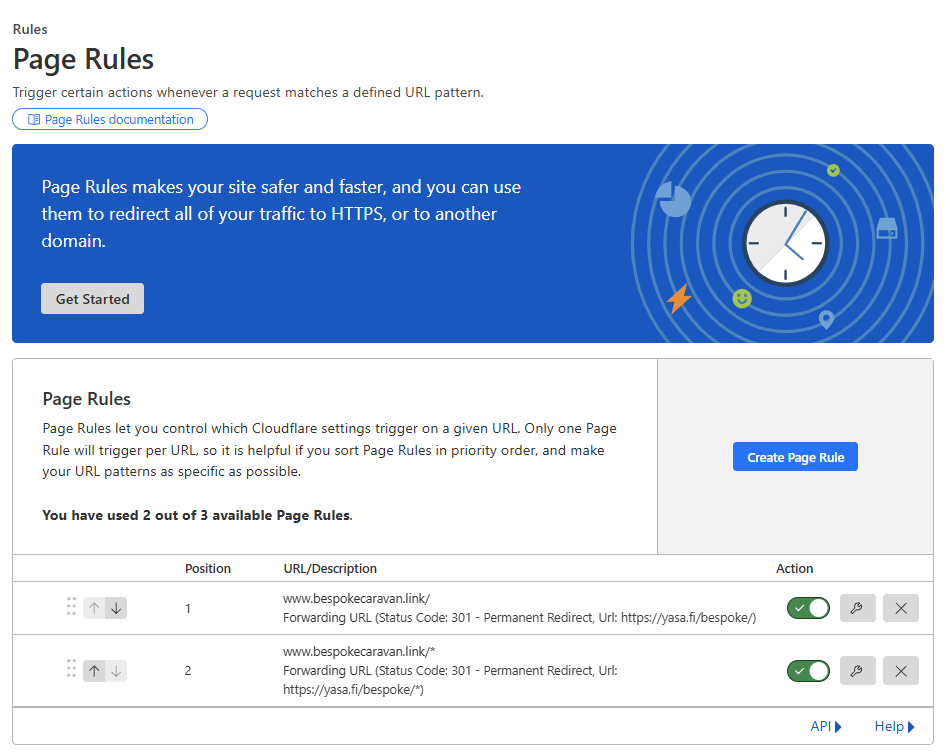
🔧 1. Redirect an old hostname and preserve the path
- Go to your Cloudflare dashboard > Rules > Page Rules
- Click “Create Page Rule”
- Set the URL pattern:
old.example.com/* - Choose Forwarding URL. Test with a temporary redirect before selecting a permanent status:
“Forwarding URL” → “301 Permanent Redirect” - Enter the destination URL:
https://example.com/blog/$1 - Verify the destination hostname does not match the source rule, then click “Save and Deploy”
🔧 2. Alternative: redirect only the root address
- Go to your Cloudflare dashboard > Rules > Page Rules
- Click “Create Page Rule”
- Set the URL pattern:
old.example.com/ - Use this root-only rule instead of the broad rule when subpages should stay where they are. Test before selecting a permanent status:
“Forwarding URL” → “301 Permanent Redirect” - Enter the destination URL:
https://example.com/blog/ - Verify the root request and an unaffected subpage after clicking “Save and Deploy”
Choose the rule that matches the intended move. A wildcard can match an empty path, so the broad example does not require an additional root-only rule. Test both the root and a nested page. Avoid a destination that matches the same redirect again.
Step 4: Alternative — use a Single Redirect
Instead of the Page Rule examples above, configure a Single Redirect using Cloudflare’s Redirect Rules. Do not add an overlapping redirect simply to reinforce another rule. Use the wildcard syntax required by the selected rule type.

✅ Instructions:
- In your Cloudflare dashboard, go to Rules > Redirect Rules.
- Click “Create rule” and select “Redirect Rule”
- Set the Request URL using a wildcard pattern:
https://old.example.com/*(Replaceexample.comwith your source and destination hostnames as appropriate.) - In the rule conditions, match only the intended source hostname and path. Do not match every request on the destination site.
- Under “Then…”, set the target and desired status. Use a temporary redirect while testing; choose 301 only for a permanent move. Decide explicitly whether query strings should be preserved:
- Action:
Redirect - Status Code:
301 – Permanent Redirect - Destination URL:
https://example.com/subfoldername/${1}
- Action:
- Test the root, a nested path and a query string after clicking “Save”.
Final step: verify the public WordPress addresses
WordPress Address identifies where the application is available; Site Address identifies the public site. These reflect the hosting setup, not merely a Cloudflare rule. The settings below are an example for a site intentionally served at a subfolder URL. Back up the current values and keep a recovery route before changing a working installation.

- Log in to your WordPress admin dashboard (
https://example.com/subfoldername/wp-admin). - Navigate to Settings > General.
- Verify these fields against the intended public subfolder address:
- WordPress Address (URL):
https://example.com/subfoldername - Site Address (URL):
https://example.com/subfoldername
- WordPress Address (URL):
- If changes are required, check them carefully before clicking Save Changes.
✅ Note:
When a domain maps directly to the WordPress directory, both public addresses normally use the domain root. If core files remain accessible under a subdirectory while the front end uses the root, follow the complete WordPress own-directory procedure, including its entry file and server rules. Changing these URL fields alone is not the complete procedure.
After an address change, check sign-in, assets, permalinks and forms. If access fails, use your hosting recovery tools. WordPress also supports URL overrides in wp-config.php; use the documented recovery method appropriate to the installation.